PING
A “ping” is a way for one computer to check if it can reach another computer using the networking IP protocol.The source computer can do a ping command to check if a destination computer is reachable, replies to pings, and the time it took to get there and back.The result will be the round-trip time it took for an IP packet to make it to the destination and back.
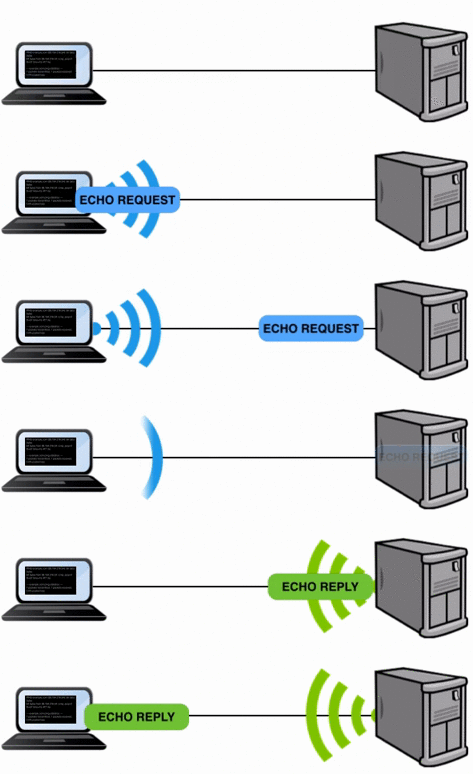
Personal computers come equipped with the ping tool installed by default. Simply open a cmd or terminal window and type ping example.com. The result will look something like this:
ping example.com
PING example.com (93.184.216.34): 56 data bytes
64 bytes from 93.184.216.34: icmp_seq=0 ttl=57 time=16.764 ms
64 bytes from 93.184.216.34: icmp_seq=1 ttl=57 time=16.836 ms
64 bytes from 93.184.216.34: icmp_seq=2 ttl=57 time=13.934 ms
64 bytes from 93.184.216.34: icmp_seq=3 ttl=57 time=14.446 ms
64 bytes from 93.184.216.34: icmp_seq=4 ttl=57 time=14.236 ms

--- example.com ping statistics ---
5 packets transmitted, 5 packets received, 0.0% packet loss
round-trip min/avg/max/stddev = 13.934/15.243/16.836/1.282 ms
The output above shows that 5 pings were sent to example.com and round trip time it took for the ping packet to make it there and back was 15ms or 0.015 seconds.
The ttl in the response above indicates “time to live”. This is the hop limit that limits the life of the packet. By default the TTL of a ping is 255.
The technology used to make ping work is Internet Control Message Protocol (ICMP). A ping works by sending an ICMP echo request packet to the destination. When the destination receives it, it will respond with an ICMP echo reply.
The ping command is a simple yet powerful tool to test basic connectivity between two computers. Not all computers will reply to a echo request packet. By default, Windows computers block incoming pings using the Windows Firewall.
Ping can be used for troubleshooting to test connectivity and determine response time.

Ping Command Syntax
ping [-t] [-a] [-n count] [-l size] [-f] [-i TTL] [-v TOS] [-r count] [-s count] [-w timeout] [-R] [-S srcaddr] [-p] [-4] [-6] target [/?]
- t = Using this option will ping the target until you force it to stop using Ctrl-C.
- -a = This ping command option will resolve, if possible, the hostname of an IP address target.
- -n count = This option sets the number of ICMP Echo Request messages to send. If you execute the ping command without this option, four requests will be sent.
- -l size = Use this option to set the size, in bytes, of the echo request packet from 32 to 65,527. The ping command will send a 32 byte echo request if you don’t use the -loption.
- -f = Use this ping command option to prevent ICMP Echo Requests from being fragmented by routers between you and the target. The -f option is most often used to troubleshoot Path Maximum Transmission Unit (PMTU) issues.
- -i TTL = This option sets the Time to Live (TTL) value, the maximum of which is 255.
- -v TOS = This option allows you to set a Type of Service (TOS) value. Beginning in Windows 7, this option no longer functions but still exists for compatibility reasons.
- r count = Use this ping command option to specify the number of hops between the your computer and the target computer or device that you’d like to be recorded and displayed. The maximum value for count is 9 so use the tracert command instead if you’re interested in viewing all hops between two devices.
- -s count = Use this option to report the time, in Internet Timestamp format, that each echo request is received and echo reply is sent. The maximum value for count is 4 meaning that only the first four hops can be time stamped.
- -w timeout = Specifying a timeout value when executing the ping command adjusts the amount of time, in milliseconds, that ping waits for each reply. If you don’t use the -w option, the default timeout value is used which is 4000, or 4 seconds.
- -R = This option tells the ping command to trace the round trip path.
- -S srcaddr = Use this option to specify the source address.
- -p = Use this switch to ping a Hyper-V Network Virtualization provider address.
- -4 = This forces the ping command to use IPv4 only but is only necessary if target is a hostname and not an IP address.
- -6 = This forces the ping command to use IPv6 only but as with the -4 option, is only necessary when pinging a hostname.
- target = This is the destination you wish to ping, either an IP address or a hostname./? = Use the help switch with the ping command to show detailed help about the command’s several options.
Note: The -f, -v, -r, -s, -j, and -k options work when pinging IPv4 addresses only. The -R and -S options only work with IPv6.
Ping of Death
The “Ping of Death” is an antiquated denial-of-service (DoS) attack that does not affect modern machines. Originally, a bug was discovered in the TCP/IP framework of many operating systems in the mid 1990s, where sending a large packet (greater than the maximum allowable size of 65,535 bytes) to a target machine would result in it becoming severely unstable, crashing, or rebooting it.
This attack was made possible because such a large packet had to be reassembled on the receiving machine. When packet fragments were reassembled into a packet larger than the maximum allowable size of 65,535 bytes on the target machine, a buffer overflow occurred, causing instability, crashing or rebooting of the targeted machine.
A new Ping of Death attack for IPv6 packets for Microsoft Windows was discovered more recently, and it was patched in mid 2013.

Comments
Post a Comment